
BYFlux logo

AI Image to Video Generator

Upload an image and let BYFlux — your Flux AI video studio — bring it to life as a short clip with Kling 3.0, Seedance, or Veo.

Photo to video workflow

Animate a still image without opening a timeline

BYFlux starts with the image you upload, then uses your motion prompt to generate a short AI video that keeps the original subject, framing, and visual direction in view.

Use it when a static portrait, product shot, illustration, poster, or campaign visual needs motion for social posts, ads, storyboards, reels, or client concepts.

Instead of choosing generic templates, you can describe camera movement, subject action, mood, speed, atmosphere, and audio support depending on the selected video model.

  • Upload JPG, PNG, or WEBP reference images up to 10MB.
  • Use first-frame and optional end-frame control with supported video models.
  • Generate clips with Veo, Kling, or Seedance from the same BYFlux workspace.
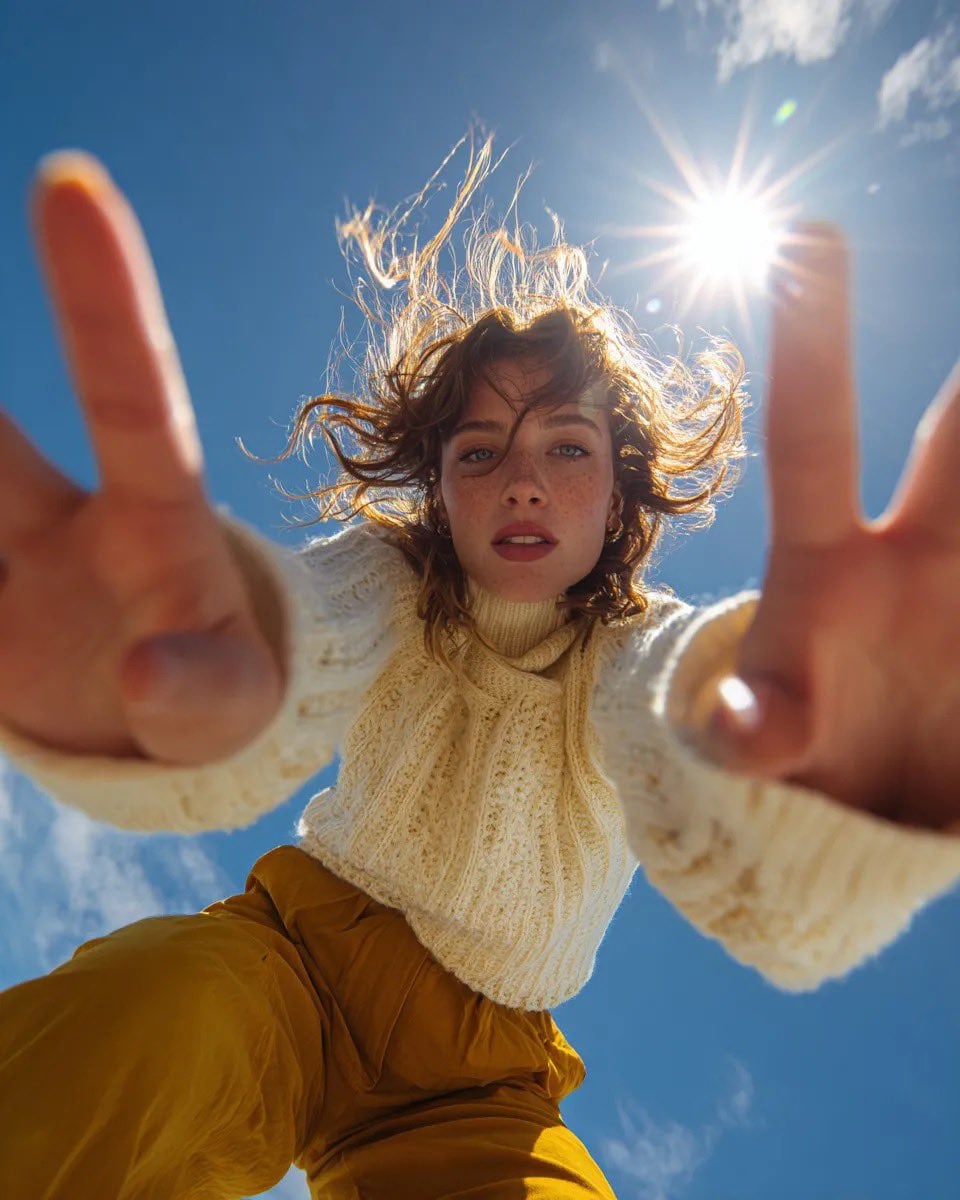
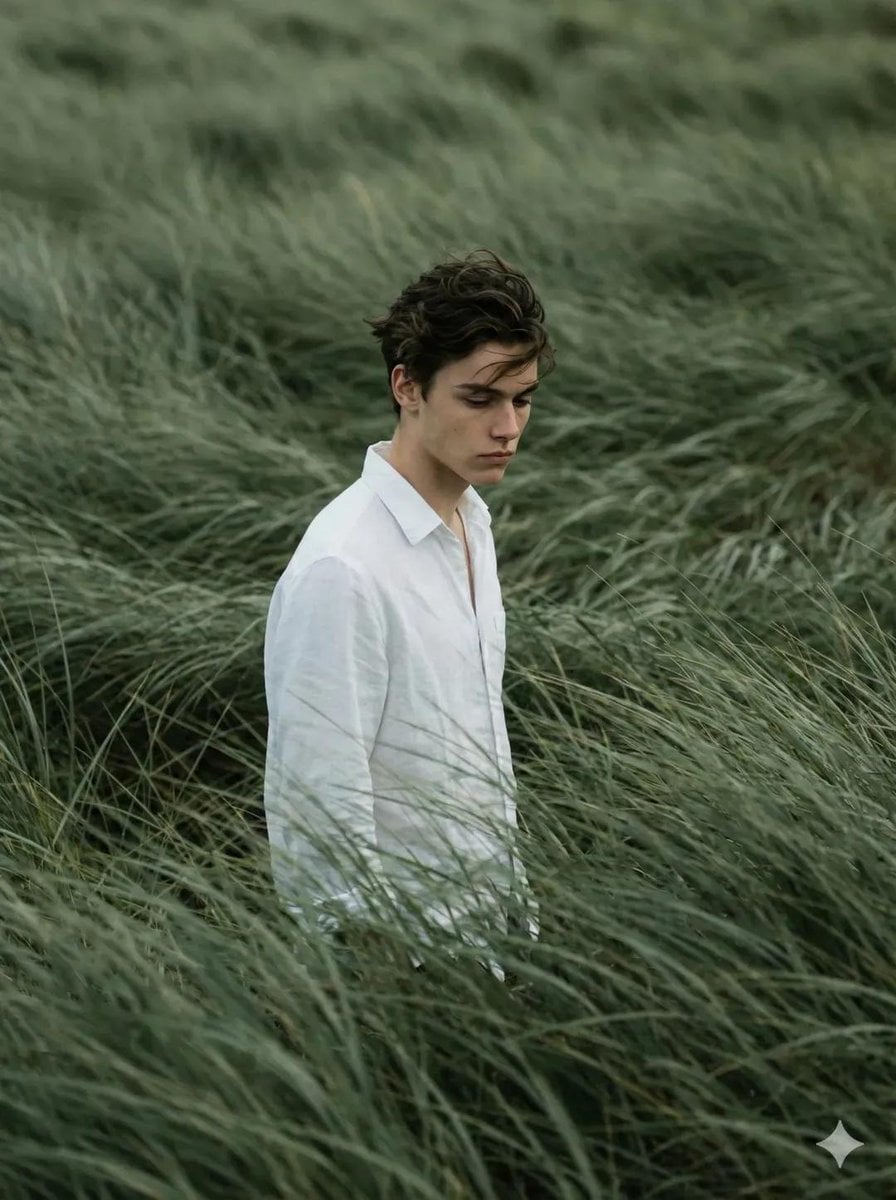
Reference portrait ready to animate with the BYFlux image-to-video generator
Reference image
Creative image direction that can be animated into AI video
Motion direction

Start with a strong still frame, then describe the movement: camera push, blinking, product rotation, drifting atmosphere, or a cinematic reveal.

Example outputs

See the kinds of image-to-video clips you can create

The reference page leads with visual proof. BYFlux now gives this page a richer preview of the motion styles available from the built-in video models.

Seedance 2

Cinematic scene motion

Use a still environment or campaign frame and add tracking motion, rain, steam, reflections, and cinematic depth.

Prompt

A cinematic tracking shot through a rainy neon night market, steam rising from food stalls, reflective pavement, shallow depth of field, natural handheld motion.

  • 16:9
  • 6s
  • Cinematic
Try this prompt
Kling 3.0

Action and reveal shots

Turn a vehicle, product, or poster-style still into a dynamic reveal with camera movement and atmospheric lighting.

Prompt

A luxury sports car exits a mountain tunnel at sunrise, camera low near the road, dust and light rays behind it, cinematic action film style with dynamic motion.

  • 16:9
  • 5s
  • Native audio
Try this prompt
Veo 3.1

Portraits with ambient movement

Animate a portrait or character frame with subtle camera push, reflections, blinking, fabric motion, and a controlled mood.

Prompt

A close-up of an astronaut looking through a spacecraft window at Earth, soft blue rim light, slow emotional camera push, realistic reflections and quiet atmosphere.

  • 16:9
  • 6s
  • Ambient
Try this prompt

Use cases

What you can do with an image-to-video generator

MindVideo covers animations, ads, effects, and privacy. BYFlux adapts those same decision points to the real image-to-video workflow in this app.

Animate portraits and illustrations

Add blinking, breathing, hair movement, drifting light, or a slow camera push to a portrait, character concept, comic panel, or stylized artwork.

Prompt idea: the subject blinks gently as the camera slowly pushes in, soft natural light, subtle fabric movement.

Create product and merchandise ads

Bring ecommerce shots, packaging, posters, or product mockups to life with turntable motion, light sweeps, fog, reflections, and reveal shots.

Prompt idea: premium product rotates on a studio pedestal, dramatic rim light, crisp reflections, commercial reveal.

Generate film, game, and storyboard effects

Use a concept frame as the anchor for action beats, fantasy effects, sci-fi ambience, weather, explosions, or cinematic establishing shots.

Prompt idea: mist rolls through the scene, particles drift in the light, camera moves forward like a movie trailer shot.

Repurpose still content for social

Turn thumbnails, campaign visuals, gallery images, and brand assets into short clips for reels, ads, stories, landing pages, and pitches.

Prompt idea: vertical social video, smooth handheld energy, subtle depth, scroll-stopping motion in the first second.

How it works

Create an image-to-video result in three steps

Keep the workflow simple: upload the anchor image, describe the motion, then choose the model and clip settings that fit the destination.

01

Upload a reference image

Choose a clear JPG, PNG, or WEBP frame. For best results, start with a sharp image, readable subject, and a composition that already looks like the first frame of the video.

02

Describe the movement

Tell BYFlux what should move: camera direction, subject action, environment, emotion, speed, style, and anything that should stay stable.

03

Generate and download

Pick Veo, Kling, or Seedance, choose duration and resolution, generate the clip, then download the result or iterate with a tighter prompt.

Core features

Built for controlled photo-to-video creation

A complete image-to-video page needs to answer more than "can it animate?" It should explain control, model choice, quality, formats, and usage rights.

Animate any image

Upload a photo, product shot, poster, or artwork and turn it into motion with camera moves, ambience, and natural subject movement.

Reference-guided motion

Keep the look of your source image while the model generates coherent movement from your prompt and frame guidance.

Veo, Kling, and Seedance

Switch between leading video models for fast drafts, cinematic motion, native audio, or higher-quality output.

Commercial license included

Every video you create will be yours to use for commercial, marketing, and client projects.

Why BYFlux

Why animate images with BYFlux

The page now explains the practical reasons a visitor should create here instead of treating the tool as a generic upload box.

Generator first

Visitors land directly on the working image-to-video tool, so they can upload an image before reading the rest of the page.

Precise motion prompts

Describe camera movement, subject action, lighting changes, and atmosphere instead of picking a one-size-fits-all template.

Flexible clip settings

Choose supported aspect ratios, durations, resolution tiers, and audio options based on the model and publishing channel.

Creator-ready rights

Use generated clips for ads, social content, client concepts, landing pages, product launches, and commercial campaigns.

Pricing

Choose the plan that fits your needs

Basic Plan

$7.50/month

Total: $90/year

1,000/month
Cost per 100 credits$0.75

Perfect for individual creators getting started


  • 1,000 credits per month
  • Generate up to 50 images (from 20 credits/image)
  • Or up to 16 videos (from 62 credits/video)
  • No watermark
  • Commercial usage rights
All credit models supported
Flux 2Nano BananaGPT ImageSeedreamSeedanceKlingVeo
Popular

Pro Plan

$24.17/month

Total: $290/year

5,000/month
Cost per 100 credits$0.48

Scale your content creation with more power


  • 5,000 credits per month
  • Generate up to 250 images (from 20 credits/image)
  • Or up to 80 videos (from 62 credits/video)
  • No watermark
  • Commercial usage rights
  • Priority support
All credit models supported
Flux 2Nano BananaGPT ImageSeedreamSeedanceKlingVeo

Studio Plan

$49.17/month

Total: $590/year

11,000/month
Cost per 100 credits$0.45

Professional studio-grade image production


  • 11,000 credits per month
  • Generate up to 550 images (from 20 credits/image)
  • Or up to 177 videos (from 62 credits/video)
  • No watermark
  • Commercial usage rights
  • Dedicated support
  • Priority processing queue
All credit models supported
Flux 2Nano BananaGPT ImageSeedreamSeedanceKlingVeo
MastercardVisaAmerican ExpressJCBStripeDiscover

Creator workflows

Built for the teams that turn stills into motion

This fills the gap between a generic feature list and the real jobs people hire an image-to-video generator to do.

Social media teams

Turn static campaign assets into short clips for reels, stories, ads, thumbnails, and launch posts without scheduling a shoot.

Ecommerce and brand teams

Animate product photography, packaging concepts, merch mockups, and hero images into motion tests for ads and landing pages.

Filmmakers and game artists

Use concept frames to explore camera moves, mood, action beats, VFX directions, and animated storyboard moments.

Creation scenarios

Common ways creators use image to video

These are workflow examples, not fabricated testimonials: they show the real outcomes this page should help visitors evaluate.

01

Product launch clip

Marketing

"Start from one polished product image, then create a short reveal with rotation, light movement, and a clean commercial finish."
02

Portrait animation

Creator

"Keep the face and composition stable while adding blinking, fabric motion, a slow camera push, and a stronger emotional beat."
03

Storyboard motion test

Film and game

"Use a keyframe or concept art image to test camera language, atmosphere, and action before committing to production."
04

Social asset remix

Content team

"Turn a still visual into multiple vertical or horizontal motion variants for paid ads, reels, stories, and landing pages."

FAQs

Frequently asked questions

Start animating your images

Upload a reference image, describe the motion, and animate your first clip with BYFlux for free.

  • Free to start
  • JPG, PNG, and WEBP uploads
  • Veo, Kling, and Seedance
  • Commercial use included